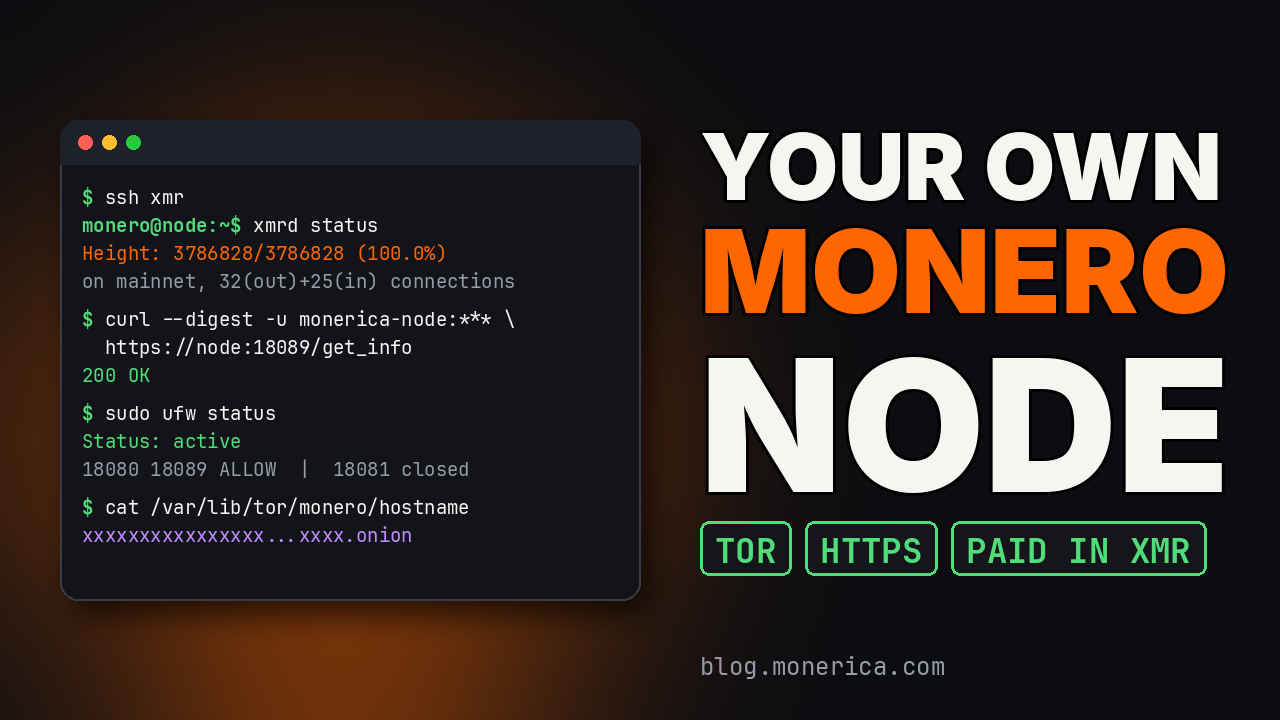
When your wallet connects to someone else's remote node, that node can see your IP address and when your wallet syncs and broadcasts transactions. Running your own node fixes that, but a home computer has to stay on and needs over 100 GB of disk. The middle ground is a private remote node on a VPS: always on, paid in Monero, and locked so that only your wallets can use it.
This guide has every command from the video, in order, ready to copy and paste. By the end you will have:
- a pruned Monero node (about 107 GB) running on a Debian 12 VPS,
- a wallet connection over HTTPS with a username and password on port 18089,
- a Tor .onion address for the same node,
- a firewall, key-only SSH, automatic certificate renewal, and a one-command updater.
Disclosure: the VPS host in this guide, BTCVPS, is a sponsor on Monerica.com. The commands work on any Debian 12 VPS.
What you need
- A VPS with at least 160 GB of SSD. Disk is what matters, not CPU. The video uses BTCVPS “VPS 8” (160 GB SSD, 8 GB RAM, 4 cores, about €24/month), paid in Monero with email-only signup.
- A domain name where you can add a DNS record, for example
node.example.com. This is needed for a real HTTPS certificate. - A terminal on your own computer (Linux, macOS, or Windows with OpenSSH).
- Patience: the first sync took just under 16 hours in the video.
Placeholders used in this guide
Replace these with your own values everywhere they appear:
| Placeholder | What it is |
|---|---|
YOUR_SERVER_IP | Your VPS IP address, from the hosting dashboard |
node.example.com | Your node's hostname (an A record pointing at the IP) |
you@example.com | Your email, for certificate expiry notices |
YOUR_PASSWORD | The password your wallets will use to log in to the node |
YOUR_ONION.onion | The Tor address the server prints in step 7 |
monerica-node | The SSH key name and the node username. Keep it or change it everywhere. |
Password tip: use only letters and digits, and make it long (24+ characters). Characters like $ ! & / \ ' " break the commands in steps 11 and 12. A $ in the password is exactly what broke the node while this guide was being made.
Step 0: Buy the VPS and point your domain at it
- On btcvps.com, choose a plan with 160 GB+ of disk, pick Debian as the operating system and Monero as the payment method, then enter an email, password and captcha.
- Send the XMR shown on the invoice. After 2 confirmations the order is marked paid.
- On the server page, note the IP address.
- At your DNS provider, add an A record: name
node, valueYOUR_SERVER_IP. It can propagate while you do the next steps.
Step 1: Create an SSH key
Run on: your computer
This makes a key pair called monerica-node. Enter a passphrase when asked; it protects the key if your computer is ever compromised. The last command prints the public key. Copy the whole line that starts with ssh-ed25519.
ssh-keygen -t ed25519 -f ~/.ssh/monerica-node -C "monerica-node"
eval "$(ssh-agent -s)"
ssh-add ~/.ssh/monerica-node
cat ~/.ssh/monerica-node.pub
Step 2: Add the key and reinstall Debian 12
Run on: the BTCVPS control panel (Virtualizor)
- Access Panel → SSH Keys → Add SSH Key: paste the public key and name it
monerica-node. - List VPS → gear icon → Install: choose Debian 12, set a password, select the
monerica-nodeSSH key, then click Reinstall and confirm.
The server keeps the same IP. When it comes back up, it already trusts your key.
Step 3: First login as root and create the “monero” user
Run on: your computer, then the server as root
Log in as root with the key. Type yes to accept the server's fingerprint the first time.
ssh -i ~/.ssh/monerica-node root@YOUR_SERVER_IP
On the server, install updates and the tools we need (sudo, the ufw firewall, Tor, curl, wget, bzip2, certbot). Then create a normal user called monero that will run the node, so nothing runs as root. It gets the same SSH key as root and can use sudo without a password, because it has no password: the key is the lock.
apt update && apt install -y sudo ufw tor curl wget bzip2 certbot
adduser --disabled-password --gecos "" monero
usermod -aG sudo monero
mkdir -p /home/monero/.ssh
cp /root/.ssh/authorized_keys /home/monero/.ssh/authorized_keys
chown -R monero:monero /home/monero/.ssh
chmod 700 /home/monero/.ssh && chmod 600 /home/monero/.ssh/authorized_keys
echo "monero ALL=(ALL) NOPASSWD:ALL" > /etc/sudoers.d/monero
Step 4: Create an “ssh xmr” shortcut
Run on: your computer, in a new terminal (keep the root session open)
This forgets the server's old fingerprint from before the reinstall, then saves a shortcut so ssh xmr means: this IP, user monero, this key only.
ssh-keygen -R YOUR_SERVER_IP
cat >> ~/.ssh/config <<'EOF'
Host xmr
    HostName YOUR_SERVER_IP
    User monero
    IdentityFile ~/.ssh/monerica-node
    IdentitiesOnly yes
EOF
chmod 600 ~/.ssh/config
The video uses cat >, which replaces the file. cat >> (shown here) adds to it, so it is also safe if you already have a ~/.ssh/config with other servers.
If ssh later says agent refused operation, tell it not to use the key agent for this host (this is shown in the video). Then connect:
echo "    IdentityAgent none" >> ~/.ssh/config
ssh xmr
You are now logged in as monero.
Step 5: Lock down SSH and turn on the firewall
Run on: the server, as monero (after ssh xmr)
First confirm sudo works. It should print root.
sudo whoami
Then turn off root login and password logins, so the only way in is your key as monero. After that, turn on the firewall: block everything coming in except SSH (22), Let's Encrypt (80), Monero peers (18080) and wallets (18089). The node's admin port 18081 stays closed; it only listens on the server itself.
sudo sed -i 's/^#\?PermitRootLogin.*/PermitRootLogin no/; s/^#\?PasswordAuthentication.*/PasswordAuthentication no/' /etc/ssh/sshd_config
sudo systemctl restart ssh
sudo ufw default deny incoming
sudo ufw default allow outgoing
sudo ufw allow 22/tcp
sudo ufw allow 80/tcp
sudo ufw allow 18080/tcp
sudo ufw allow 18089/tcp
sudo ufw --force enable
Test from your computer: root is now refused, and ssh xmr still works. You can close the old root session.
ssh -i ~/.ssh/monerica-node root@YOUR_SERVER_IP
ssh xmr
Step 6: Download, verify and install Monero
Run on: the server (ssh xmr)
Download the latest Linux command-line release from getmonero.org and print its SHA-256 hash:
cd /tmp
wget https://downloads.getmonero.org/cli/linux64 -O monero.tar.bz2
sha256sum monero.tar.bz2
Open getmonero.org/downloads/hashes.txt and find the monero-linux-x64-v…tar.bz2 line. The hash must match exactly. If it doesn't, stop and download again.
Then unpack it, install monerod, create its folders, and check the version:
tar xjf monero.tar.bz2
sudo cp monero-x86_64-linux-gnu-*/monerod /usr/local/bin/
sudo mkdir -p /var/lib/monero /etc/monero/ssl
sudo chown monero:monero /var/lib/monero
monerod --version
Step 7: Create the Tor address
Run on: the server
This creates a Tor hidden service for the node: port 18089 for wallets and 18084 for Monero peers over Tor. The last command prints your .onion address. Copy it; you need it in step 9.
sudo tee -a /etc/tor/torrc > /dev/null <<'EOF'
HiddenServiceDir /var/lib/tor/monero/
HiddenServicePort 18089 127.0.0.1:18089
HiddenServicePort 18084 127.0.0.1:18084
EOF
sudo systemctl restart tor
sleep 3
sudo cat /var/lib/tor/monero/hostname
Step 8: Get the HTTPS certificate and set it to renew
Run on: the server
First check that your domain points at this server. It must print YOUR_SERVER_IP. If it prints nothing, wait a few minutes for DNS and try again.
getent hosts node.example.com
Get a free Let's Encrypt certificate:
sudo certbot certonly --standalone -d node.example.com -m you@example.com --agree-tos -n
Certbot renews the certificate automatically. This hook copies each new certificate to where Monero reads it and restarts the node. Running it once now does the first copy:
sudo tee /etc/letsencrypt/renewal-hooks/deploy/monerod.sh > /dev/null <<'EOF'
#!/bin/bash
cp /etc/letsencrypt/live/node.example.com/fullchain.pem /etc/monero/ssl/cert.pem
cp /etc/letsencrypt/live/node.example.com/privkey.pem /etc/monero/ssl/key.pem
chown monero:monero /etc/monero/ssl/*.pem
chmod 600 /etc/monero/ssl/*.pem
systemctl restart monerod 2>/dev/null || true
EOF
sudo chmod +x /etc/letsencrypt/renewal-hooks/deploy/monerod.sh
sudo /etc/letsencrypt/renewal-hooks/deploy/monerod.sh
ls -l /etc/monero/ssl/
You should see cert.pem and key.pem, both owned by monero.
Step 9: Write the Monero config
Run on: the server
Replace YOUR_ONION.onion with the address from step 7. Leave YOUR_PASSWORD as it is for now; step 11 sets the real one.
sudo tee /etc/monero/monerod.conf > /dev/null <<'EOF'
data-dir=/var/lib/monero
log-file=/var/lib/monero/monerod.log
log-level=0
prune-blockchain=1
db-sync-mode=safe

# P2P
p2p-bind-ip=0.0.0.0
p2p-bind-port=18080
out-peers=32
in-peers=64
no-igd=1

# Unrestricted RPC - localhost only, for your own apps
rpc-bind-ip=127.0.0.1
rpc-bind-port=18081

# Restricted RPC - wallets, TLS + login
rpc-restricted-bind-ip=0.0.0.0
rpc-restricted-bind-port=18089
rpc-login=monerica-node:YOUR_PASSWORD
rpc-ssl=autodetect
rpc-ssl-certificate=/etc/monero/ssl/cert.pem
rpc-ssl-private-key=/etc/monero/ssl/key.pem

# Tor
tx-proxy=tor,127.0.0.1:9050,16
anonymous-inbound=YOUR_ONION.onion:18084,127.0.0.1:18084,64
EOF
sudo chown root:monero /etc/monero/monerod.conf
sudo chmod 640 /etc/monero/monerod.conf
What the main settings do:
prune-blockchain=1keeps about a third of the full chain (around 107 GB instead of 250 GB+). It still works fully as a wallet node.- Port 18081 is the unrestricted admin RPC, reachable only from the server itself.
- Port 18089 is the restricted RPC for wallets: safe commands only, with a login and HTTPS.
tx-proxysends your transactions out over Tor, andanonymous-inboundlets other nodes reach yours over Tor.
Step 10: Run Monero as a service
Run on: the server
This makes the node start on boot, run as the monero user, and restart itself if it ever crashes:
sudo tee /etc/systemd/system/monerod.service > /dev/null <<'EOF'
[Unit]
Description=Monero Daemon
After=network-online.target tor.service

[Service]
User=monero
Group=monero
ExecStart=/usr/local/bin/monerod --config-file=/etc/monero/monerod.conf --non-interactive
Restart=always
RestartSec=10

[Install]
WantedBy=multi-user.target
EOF
sudo systemctl daemon-reload
sudo systemctl enable --now monerod
sleep 15
sudo systemctl status monerod --no-pager | head -4
You should see active (running).
Step 11: Set your real password
Run on: the server
Put your real password into the config, restart, and add an xmrd shortcut so you can check the node without typing the login each time:
sudo sed -i 's/^rpc-login=.*/rpc-login=monerica-node:YOUR_PASSWORD/' /etc/monero/monerod.conf
sudo systemctl restart monerod
echo "alias xmrd='monerod --rpc-login monerica-node:YOUR_PASSWORD'" >> ~/.bashrc && source ~/.bashrc
sleep 15
xmrd status
The status line shows the sync height and percentage. The node is now downloading the blockchain.
Step 12: Wait for the sync
Run on: your computer
You can check progress from your own computer at any time. Repeat until it shows 100.0%; in the video that took just under 16 hours.
ssh xmr "monerod --rpc-login monerica-node:YOUR_PASSWORD status"
Check disk usage. In the video the pruned chain used 107 GB, with 41 GB still free:
ssh xmr "df -h /var/lib/monero && du -sh /var/lib/monero"
Step 13: Test the login
Run on: your computer
With the login, the node answers 200. Without it, 401 (unauthorized). That's the lock working:
curl -s --digest -u 'monerica-node:YOUR_PASSWORD' -o /dev/null -w "%{http_code}\n" https://node.example.com:18089/get_info
curl -s -o /dev/null -w "%{http_code}\n" https://node.example.com:18089/get_info
You can also open https://node.example.com:18089/get_info in a browser. It asks for the username and password, then shows the node's info, including "synchronized": true.
Step 14: Install the one-command updater
Run on: your computer (it installs the script on the server)
This script checks the latest Monero release, and only if it is newer, downloads it, verifies the hash against getmonero.org, installs it and restarts the node. Paste it as one block:
ssh xmr 'sudo tee /usr/local/bin/update-monero > /dev/null <<'"'"'EOF'"'"'
#!/bin/bash
set -euo pipefail

INSTALLED=$(monerod --version 2>/dev/null | grep -oE "v[0-9]+\.[0-9]+\.[0-9]+\.[0-9]+" || echo "none")
URL=$(curl -sIL https://downloads.getmonero.org/cli/linux64 | grep -i "^location:" | tail -1 | tr -d "\r" | awk "{print \$2}")
FILE=$(basename "$URL")
LATEST=$(echo "$FILE" | grep -oE "v[0-9]+\.[0-9]+\.[0-9]+\.[0-9]+")

echo "installed: $INSTALLED   latest: $LATEST"
if [[ "$INSTALLED" == "$LATEST" ]]; then
  echo "up to date"; exit 0
fi

TMP=$(mktemp -d); cd "$TMP"
echo "downloading $FILE ..."
curl -sSL -o "$FILE" "$URL"
curl -sSL -o hashes.txt https://www.getmonero.org/downloads/hashes.txt

EXPECTED=$(grep -E "\s$FILE\$" hashes.txt | awk "{print \$1}")
ACTUAL=$(sha256sum "$FILE" | awk "{print \$1}")
if [[ -z "$EXPECTED" || "$EXPECTED" != "$ACTUAL" ]]; then
  echo "HASH MISMATCH - aborting"; echo "expected: $EXPECTED"; echo "actual:   $ACTUAL"
  rm -rf "$TMP"; exit 1
fi
echo "hash verified"

tar xjf "$FILE"
install -m 755 monero-x86_64-linux-gnu-*/monerod /usr/local/bin/monerod
systemctl restart monerod
rm -rf "$TMP"
sleep 10
echo "now running: $(monerod --version)"
systemctl is-active monerod
EOF
sudo chmod +x /usr/local/bin/update-monero'
From now on, update the node with one command. It prints up to date when there is nothing to do:
ssh xmr "sudo update-monero"
Step 15: Connect your wallets
Monero GUI (desktop)
Settings → Node → Remote node → Add remote node:
- Address:
node.example.comPort:18089 - Daemon username:
monerica-nodeDaemon password:YOUR_PASSWORD - Tick Mark as Trusted Daemon. It's your node, so you can trust it.
Phone wallets (Monfluo, Cake Wallet and others)
Add a node with address node.example.com, port 18089, SSL on, and the same username and password.
Over Tor
In a wallet with Tor support (or with Orbot), use YOUR_ONION.onion, port 18089, with the same login. Turn SSL off for the onion, because Tor already encrypts the connection and the certificate is for your domain, not the onion.
Changing the password later
Run on: the server (ssh xmr)
Replace NEW_PASSWORD in both lines, restart the node, then update the password in each wallet:
sudo sed -i 's/^rpc-login=.*/rpc-login=monerica-node:NEW_PASSWORD/' /etc/monero/monerod.conf
sed -i "s/--rpc-login monerica-node:[^ ']*/--rpc-login monerica-node:NEW_PASSWORD/" ~/.bashrc
sudo systemctl restart monerod
Troubleshooting
ssh xmrsays “agent refused operation” or asks for a password: addIdentityAgent noneas shown in step 4.- Certbot times out: the domain must point at the server (
getent hosts node.example.com), and port 80 must be open (step 5). - The node won't start after a password change: check the line with
grep rpc-login /etc/monero/monerod.conf. A$or other special character in the password is the usual cause. Use letters and digits only. - The wallet can't connect: check the sync is at 100% (step 12), use port 18089 with SSL on, and run the
curltest from step 13.
That's it
You now have your own Monero remote node: it doesn't log you, it works over Tor, and only your wallets can use it. Thanks to BTCVPS for sponsoring Monerica and making this guide free. For more places to swap and spend Monero, see Monerica.com, the Monero economy directory.