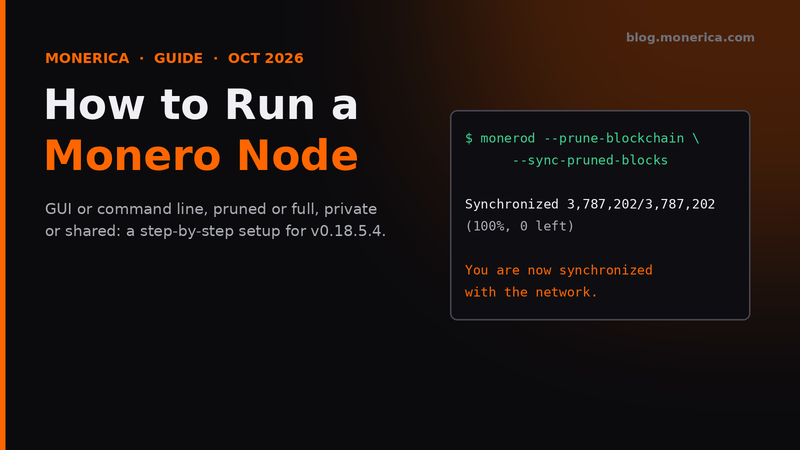
Running your own Monero node means your wallet never has to trust someone else’s server. This guide (updated October 2026 for Monero v0.18.5.4 “Fluorine Fermi”) walks through the easy GUI route and the command-line route, pruned vs full, and how to share your node safely.
- Short answer: install Monero from getmonero.org, run it as a pruned node (about 105 GiB today), let it sync, and point your wallet at it.
- Before you start: an SSD with 500 GB free and 4 GB+ RAM. Full details: Monero node requirements.
GUI or Command Line?
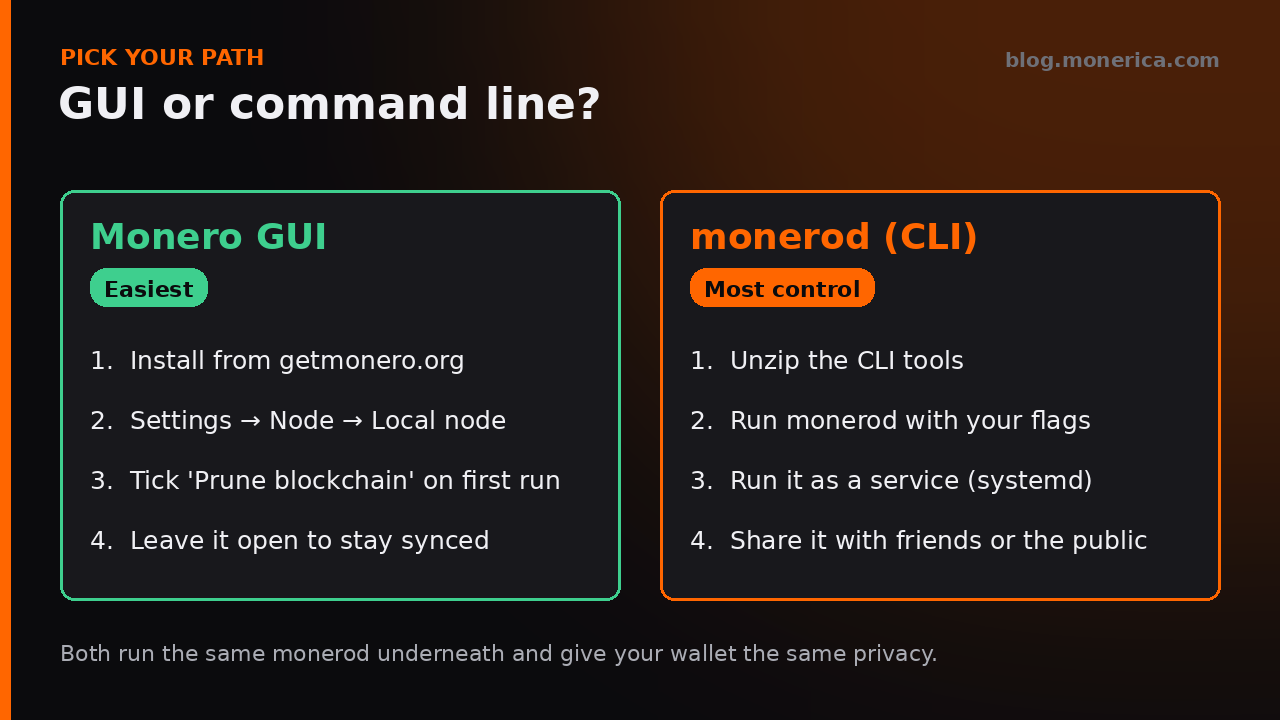
Both run the same monerod program and give your wallet the same privacy. Pick the GUI if you want a node on the computer you use your wallet on; pick the command line for a dedicated machine or server that stays on.
Option A: Monero GUI (Easiest)
- Download and verify the GUI from getmonero.org/downloads. On Windows, see verifying Monero on Windows if Defender complains.
- On first launch choose Advanced mode, which runs a local node.
- When asked, tick Prune blockchain to use about 60% less disk. Do this on the first run: pruning later only frees space if you run
monero-blockchain-prune. - Optional: in Settings › Node, set the blockchain location to a fast SSD, and add extra options in Daemon startup flags (for example
--sync-pruned-blocks). - Leave the GUI open until it says it’s synchronized. The first sync usually takes a day or two on an SSD.
Option B: Command Line (monerod)
1. Download and verify
Get the CLI archive for your system from getmonero.org/downloads, check it against the signed hashes.txt, and unpack it.
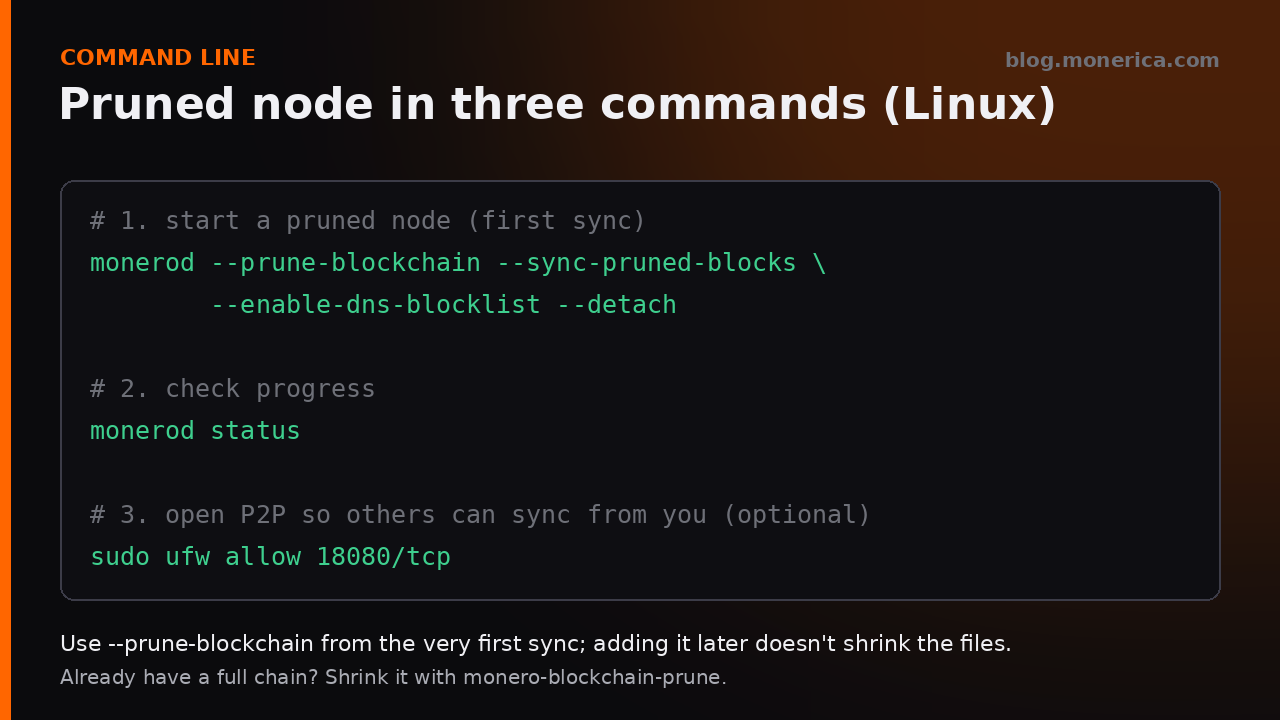
2. Start a pruned node
monerod --prune-blockchain --sync-pruned-blocks --enable-dns-blocklist--prune-blockchain: keep about a third of the chain. Use it from the first sync.--sync-pruned-blocks: download already-pruned blocks, saving bandwidth.--enable-dns-blocklist: avoid peers on the community blocklist of bad nodes.- Want a full node instead? Leave out the two prune options.
Type status in the monerod window (or run monerod status from another terminal) to see progress, and exit to stop it cleanly.
3. Run it as a service (Linux)
So it starts on boot and restarts if it stops, create a dedicated user and a systemd service:
sudo useradd --system --create-home --home-dir /var/lib/monero monero

# /etc/systemd/system/monerod.service
[Unit]
Description=Monero node
After=network-online.target

[Service]
User=monero
Group=monero
ExecStart=/usr/local/bin/monerod --non-interactive --data-dir /var/lib/monero \
  --prune-blockchain --sync-pruned-blocks --enable-dns-blocklist
Restart=always

[Install]
WantedBy=multi-user.target
sudo systemctl daemon-reload
sudo systemctl enable --now monerod
journalctl -u monerod -f # watch the syncThe official systemd guide covers this in more detail.
4. Open the P2P port (optional)
Opening 18080 lets other nodes sync from you, which helps the network. Your node works without it.
sudo ufw allow 18080/tcpConnect Your Wallet
- Same computer: wallets find the node at
127.0.0.1:18081automatically, or choose “local node”. - Another computer or phone at home: share the node as below, then in the wallet add a custom node with your node’s IP and port 18089.
- Away from home: make the node reachable over Tor (a hidden service) rather than opening ports, and add the .onion address in your wallet.
Sharing Your Node Safely
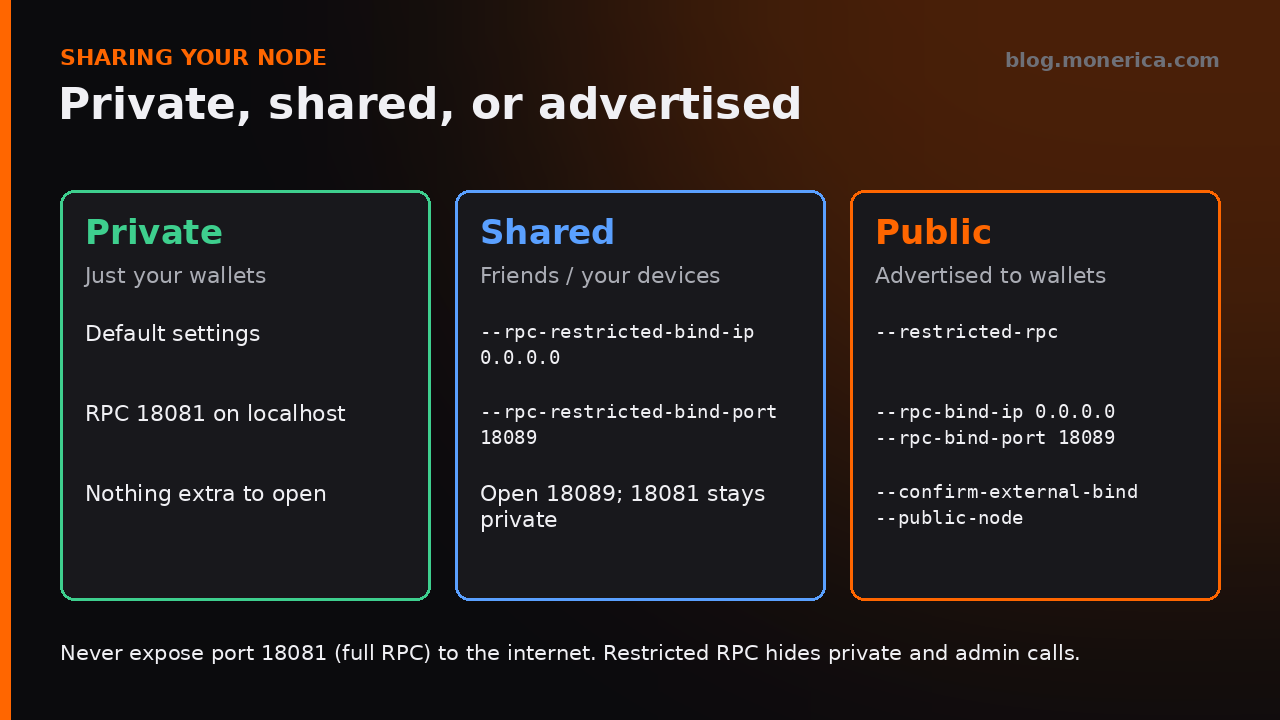
- Private (default): RPC on
127.0.0.1:18081for your own wallets only. - Shared: keep 18081 private and add a second, restricted API for other devices or friends:
--rpc-restricted-bind-ip 0.0.0.0 --rpc-restricted-bind-port 18089
Then open port 18089. - Public and advertised: make the main RPC restricted, bind it publicly and advertise it so wallets can find it:
--restricted-rpc --rpc-bind-ip 0.0.0.0 --rpc-bind-port 18089 --confirm-external-bind --public-node
Never expose the unrestricted RPC (18081 by default) to the internet: it allows admin commands. Don’t combine --restricted-rpc with --rpc-restricted-bind-port; the official docs note that gives you two restricted APIs.
Useful Extras
- Limit bandwidth:
--limit-rate-up 1024 --limit-rate-down 4096(kB/s), or fewer peers with--out-peers/--in-peers. - Mine with P2Pool: add
--zmq-pub tcp://127.0.0.1:18083so P2Pool can read new blocks from your node. - Move the data:
--data-dir /path/on/ssdstores the blockchain somewhere else. - All options: our monerod startup flags reference.
Troubleshooting
- Sync is very slow: almost always a hard drive. Move the data to an SSD with
--data-dir. - Stuck at 0 peers: check your internet connection and firewall; opening 18080 helps.
- Disk filling up: switch to pruned. If you already synced a full node, run
monero-blockchain-prune. - Upgrading: stop the node, replace the program files with the new verified release, and start it again. Your blockchain data stays.
FAQ
Pruned or full?
Pruned for most people: about 105 GiB instead of 265 GiB, with the same wallet privacy. Full if you have the space and want to help new nodes sync. See Monero blockchain size.
How long does the first sync take?
Roughly a day or two on an SSD with a good connection; a week or more on a hard drive.
Does running a node earn XMR?
No. A node keeps your wallet private and helps the network. Earning XMR needs mining (for example with P2Pool).
Related Articles
- Monero Node Requirements (2026)
- Monero Blockchain Size (2026)
- Monero Node List (2026)
- Best Monero Remote Node