This post contains an affiliate code. Using MONERICA at NovaCustom checkout earns the directory a small commission at no extra cost to you.
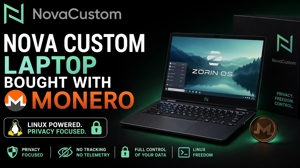
The NovaCustom V56 PrivacyGuard is a 16-inch Linux laptop built around three ideas that are rare in the same machine: open-source firmware (Dasharo coreboot), the Intel Management Engine disabled out of the box, and a checkout that accepts Monero end-to-end. This is a full review covering ordering, unboxing, setup, hardware, and real-world performance.
Quick Summary
- Price: $1,729 list — $1,642 with code MONERICA (5% off)
- Verdict: Recommended for privacy-focused users, Linux developers, and anyone leaving Big Tech operating systems
- Best for: Linux work, self-hosting, running a Monero node, sovereignty-minded computing
- Not ideal if: you need MacBook-grade chassis rigidity or class-leading battery life
Why This Laptop
Two non-negotiables drove the buying decision: it had to run Linux without a week of driver fights, and it had to be payable with Monero end-to-end. NovaCustom hits both. They are a Dutch company that ships laptops with Dasharo coreboot firmware, Intel ME disabled, a physical camera slider, and Zorin OS Pro pre-installed. Three-year warranty, seven years of firmware updates, and seven years of guaranteed spare parts.
Ordering & Paying With Monero
The laptop is listed on monerica.com, the Monero merchant directory. Applying code MONERICA at NovaCustom checkout drops the price from $1,729 to $1,642.
The Monero payment flow is straightforward: select Monero at checkout, get an invoice, send the payment from your wallet, and wait for confirmation. There is no KYC anywhere — no account verification, no ID requests, no questions about the purchase.
A privacy note worth repeating: a private payment does not mean much if you ship the box to your home address. Use a PO box, a business address, or a mail forwarding service. Pair payment privacy with delivery privacy.
Three emails arrive after ordering: order confirmation, shipping notification, and a separate email containing a Zorin OS Pro support code (the Pro license is included with the laptop). The unit shipped within three working days from the US warehouse via USPS — no customs paperwork for US buyers.
Unboxing
What is in the box:
- The laptop
- Power adapter (90 W)
- USB thumb drive with the Zorin OS reinstall image
- Printed instruction sheet with default login credentials and BIOS instructions
The instruction sheet covers how to disable Secure Boot if booting from a USB drive is needed. By default, USB boot is locked down — pressing F2 at startup is required to enter BIOS and disable it. This is a sensible security default rather than a limitation.
First Boot & BIOS Setup
The laptop boots into Zorin OS Pro using the credentials from the printed sheet — no Windows OOBE, no Microsoft account prompt, no Apple ID. A few setup steps worth doing before regular use:
Set the Battery Charge Limit
Reboot, press F2, and enter the Dasharo BIOS. Set the battery charge limit to 80%. Charging to 100% every day shortens battery lifespan significantly. At 80%, the battery still displays as "fully charged" when plugged in — there is no UX downside, and the long-term lifespan benefit is substantial.
Other BIOS Features Worth Knowing
- Intel ME disabling options
- OS-independent fan profiles
- Keyboard backlight control at the firmware level
- Secure Boot toggle
- Easy firmware updates from within the BIOS
Language
The unit may default to Canadian English. Switching to US English is a one-minute fix in Zorin's regional settings.
WiFi
The Intel AX-211 card connects on the first try with no driver issues. One practical note: switch to the 6 GHz band to get the maximum throughput. On 5 GHz the connection works fine but does not pull the speeds the card is capable of. The OS will occasionally forget the network and require a manual reconnect — whether this is a Zorin issue, a driver issue, or router-specific is unclear, but it is a thirty-second fix when it happens.
Hardware Tour
Build Quality
The chassis weighs about four pounds and uses metal for the bottom and screen back, with resilient synthetic material elsewhere. The chassis has slightly more flex than a Dell XPS or MacBook Pro unibody — those are unibody designs that are essentially impossible to bend. The trade-off here is that the V56 is genuinely repairable and upgradable, with parts guaranteed available for seven years. That trade is worth it for most use cases.
Camera Slider
A physical slider in the bezel covers the 2 MP webcam. This is meaningfully better than a piece of black tape — cleaner, repeatable, and leaves no residue. Slides open in a second when the camera is needed.
Fan Boost Button
A dedicated hardware button ramps the fan to maximum on a single press. Useful for sustained workloads such as compiles, blockchain syncs, or video encoding.
Ports
- 1 × Thunderbolt 4 USB-C with Power Delivery and DisplayPort Alt Mode
- 1 × USB 3.2 Gen 2 USB-C with Power Delivery
- 1 × USB 3.2 Gen 2 Type-A (powered)
- 1 × USB 3.2 Gen 1 Type-A
- 1 × HDMI 2.1 with HDCP
- 1 × 2-in-1 audio combo jack
- 1 × Gigabit Ethernet
- 1 × DC-in jack
- Micro SD card reader
- Kensington lock slot
Display
16-inch QHD+ (2560×1600), 144 Hz IPS, anti-reflective, 400 nits, 125% sRGB. Drives up to four external displays via HDMI and DisplayPort over USB-C. 4K external output over HDMI works without issue.
Keyboard
White-illuminated, full-size with numpad, US ANSI or any ISO European layout. The keyboard is a replaceable spare part — if a key breaks or you want a different layout, you can buy a new keyboard rather than ship the laptop in for service.
Zorin OS Pro
Zorin OS is built around the experience of users coming from Windows. The start menu, taskbar, and system tray all sit where Windows users expect them. For most ex-Windows users, the layout requires no adjustment period. The Pro version is included with NovaCustom laptops by default.
Zorin has publicly stated they will not comply with age verification requirements, which is a meaningful values signal beyond the feature checklist.
The Bigger Point: AI Has Made Linux Accessible
The traditional friction in moving from Windows to Linux was googling commands, copy-pasting scripts from Reddit and forums, and running things you did not fully understand. That is a real risk — both for breaking the system and for executing malicious code.
The new workflow is to use an AI assistant. Ask in plain English what a command does before running it. Get error messages explained instead of grepping through Stack Overflow answers from 2014. Understand what is happening on the system before changing it. This single workflow change has done more to make Linux accessible to ex-Windows users than any specific distro choice. Productivity loss when switching to Linux is now near zero. You do not need to be a Linux expert — you need to know how to ask good questions.
Real-World Performance
Workloads Tested
- Full Monero node: entire blockchain synced (~257 GB at sync time, roughly 34% of the 1 TB SSD). Plenty of headroom remaining for everything else.
- VS Code with C# / .NET: compiles and multitasking handled without complaint.
- Bash deploy scripts to Linux VPS infrastructure: production code has been built and deployed from this machine to live sites.
Performance Notes
32 GB of DDR5 keeps multitasking smooth even with the Monero node running in the background. The Core Ultra 5 125H handles compiles and blockchain sync without thermal or speed issues. The PCIe Gen 4 SSD is fast enough that file operations and blockchain reads are not bottlenecks.
Peripheral Compatibility
Every external device tested worked without configuration: external mouse, external monitor over HDMI, USB drives, audio devices, external keyboard. The only manual adjustment needed was switching the WiFi to the 6 GHz band for max throughput.
Upgradability
The V56 has two SODIMM slots and two M.2 2280 PCIe Gen 4 slots. RAM is upgradable to 96 GB. The second M.2 slot ships empty, so a second SSD can be added later. All of this is user-serviceable — no shop visit required. NovaCustom guarantees spare parts availability for seven years, so future upgrades and repairs are realistic rather than aspirational.
The base configuration is a laptop you can grow into rather than replace.
Pros and Cons
Pros
- Paid in Monero, shipped in three days, no KYC anywhere in the flow
- Dasharo coreboot with Intel ME disabled out of the box
- Hardware actually tested on Linux — no driver hunting required
- Physical camera slider, dedicated fan boost button, replaceable keyboard
- 32 GB DDR5, 1 TB PCIe Gen 4 SSD, QHD+ 144 Hz display at this price point
- User-upgradable RAM and storage
- Three-year warranty, seven years of firmware updates and parts
- Values alignment — privacy-focused company, no Big Tech operating system
Cons
- Chassis flexes more than a unibody MacBook or XPS
- WiFi requires a manual switch to 6 GHz for max speed and occasionally forgets the network
- May default to Canadian English (small fix in settings)
- Secure Boot is locked down by default — a security win, but requires F2 to allow USB boot
- Roughly 7-hour battery is solid but not class-leading
None of these are deal-breakers. They are honest tradeoffs, mostly favoring repairability, openness, and security over the polish of sealed consumer hardware.
Specifications
| CPU | Intel Core Ultra 5 125H with Arc graphics |
| Memory | 32 GB DDR5 (2 SODIMM slots, expandable to 96 GB) |
| Storage | 1 TB GOODRAM PX700 PCIe Gen 4 SSD (2 × M.2 2280 slots) |
| Display | 16" QHD+ 2560×1600 IPS, 144 Hz, 400 nits, 125% sRGB, anti-reflective |
| Graphics | Intel Arc iGPU with Ray Tracing, DirectX 12 |
| WiFi | Intel AX-211 WiFi 6E + Bluetooth 5.3 |
| Ethernet | Gigabit (RJ-45) |
| Camera | 2 MP FHD with physical privacy slider |
| Battery | 73 Wh, ~7 hours mixed light use |
| Power | 90 W AC adapter, USB-C Power Delivery (100 W min) |
| Firmware | Dasharo coreboot, TianoCore UEFI payload, TPM 2.0, Intel Boot Guard |
| OS | Zorin OS 18 Pro (included) |
| Dimensions | 358 × 258.6 × 18 mm |
| Weight | ~4 lbs (1.8 kg) without adapter |
| Warranty | 3 years · 7-yr firmware updates · 7-yr spare parts |
Pricing
The V56 PrivacyGuard is listed at $1,729. Applying code MONERICA at NovaCustom checkout brings the final price to $1,642. Affiliate disclosure: this code earns the directory a small commission at no extra cost to the buyer.
Final Verdict
The NovaCustom V56 PrivacyGuard is well-priced, well-built for its repairability tier, privacy-respecting at the firmware level, fully upgradable, and one of very few laptops that can be purchased with Monero end-to-end with no KYC. The trade-offs (chassis flex, occasional WiFi reconnect, locked-down Secure Boot defaults) are reasonable for what the laptop optimizes for.
For Linux developers, privacy-focused users, and anyone leaving Big Tech operating systems behind, this is a solid recommendation.
Available on monerica.com — use code MONERICA for 5% off.