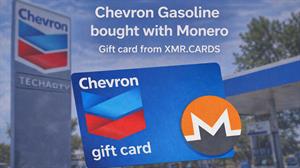
What the Chevron Gift Card Is
Brand: Chevron USA
Chevron Gift Cards can be redeemed at the pump only at participating Chevron or Texaco locations via the Chevron or Texaco app (iPhone & Andorid).
There are no maintenance or hidden fees associated with the gift card and the card will never expire.
Why This Is Useful for Monero Users
- It’s a practical way to turn Monero into an everyday expense: gasoline.
- The card value does not expire.
- Some gas station apps may offer reward points for using their service.
Step-by-Step: How I Bought Chevron with Monero
1) Find the brand via Monerica
- Go to monerica.com.
- Click Businesses.
- Click Gift & Prepaid Cards.
- Select XMR.CARDS.
2) Select Chevron and create an order
- On XMR.CARDS, click See All Brands.
- Filter to Gas Stations.
- Select Chevron USA.
- Select $10 and create the order.
3) Pay with Monero (XMR)
- The site displays a wallet address and the exact XMR amount required.
- Send the exact amount of Monero to the provided wallet address.
- After sending, the transaction is recognized on the order page.
- Wait for 10 confirmations.
4) Load and reveal the gift card
- After 10 confirmations, click Load Gift Card.
- If clicked too soon, you may see a message telling you to wait a few minutes.
- Wait about another minute and try again.
- You’ll then see a link to Redeem the Gift Card.
- Click the link and then click Activate Your Reward.
- The page shows your gift code and PIN.
Step-by-Step: Using the Chevron App at the Pump
1) Create your Chevron app profile
- Download the Chevron app.
- Enter your phone number for verification.
- Enter your first & last name plus email address.
- Agree to the terms and click Create Profile.
2) Add the gift card as a payment method
- Tap Add Payment Method.
- Select Gift or ePromo Card.
- Agree to the terms.
- Create an app PIN and confirm it.
- If prompted, you can enable Face ID instead of the PIN for the future.
- Enter the gift code and PIN, then tap Add Card.
- If a notification pop-up appears, I selected Don’t Allow.
3) Fuel up in-person (Chevron station demo)
- Go to a Chevron gas station.
- Stand within a few feet of the pump.
- Open the app and tap Fuel Up.
- Select the pump number and tap Continue.
- You’ll see your balance, then tap Authorize Payment.
- The pump changes to Remove Nozzle.
- Remove the nozzle, choose your fuel grade, and pump gas.
- In my test, it used the entire $10 balance.
- After returning the nozzle, the app shows a recent purchase for $10.
- I also received an email receipt showing what I purchased.
Pros and Cons
Pros
- Clear workflow from Monero payment to usable gift value.
- Works at the pump through the Chevron app (no cashier step in this demo).
- No expiration on card value; no maintenance/hidden fees stated.
Cons / Notes
- You must wait for confirmations (I waited for 10).
- Loading the gift card can take a little longer even after confirmations; clicking too soon may tell you to wait.
- Requires creating an app profile and phone verification.
- Redemption is at participating locations via the Chevron/Texaco app.
Final Take
If you want a straightforward way to convert Monero into an everyday essential, buying a Chevron gift card through XMR.CARDS and using it in the Chevron app is a solid option. In my demo, the full $10 was successfully used at the pump, and the purchase showed up in the app and by email.
Disclaimer: This content is for informational purposes only and is not tax, legal, or financial advice.
Overall Rating:
4.8 / 5